
Setup Guide
Up & Running in Minutes
A calm, step-by-step walkthrough. Follow along and you'll be sending broker emails from your own Gmail or Outlook in a few minutes. Nothing here can break anything — if you get stuck, you can always start a step over.
⬇️ Install DATSpeed
DATSpeed works on Google Chrome and Microsoft Edge. One click and it's in.
 Add to Chrome / Edge
📌 Pin It to Your Toolbar
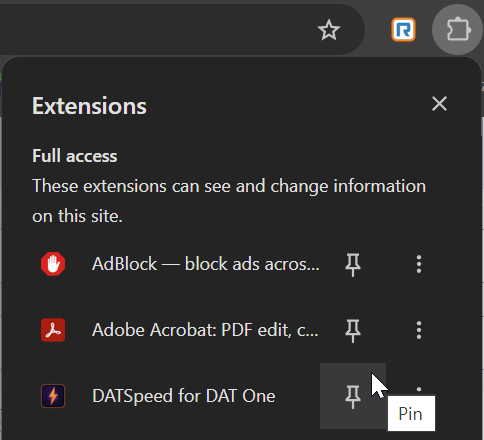
Click the puzzle piece 🧩 in the top-right corner of your browser, find DATSpeed for DAT One, and click the pin 📌 next to it.
Now the ⚡ DATSpeed icon is always one click away.
🚛 Open DAT One → Search Loads
Go to one.dat.com and open the Search Loads page from the sidebar. DATSpeed activates automatically.
🔑 Sign In to DATSpeed
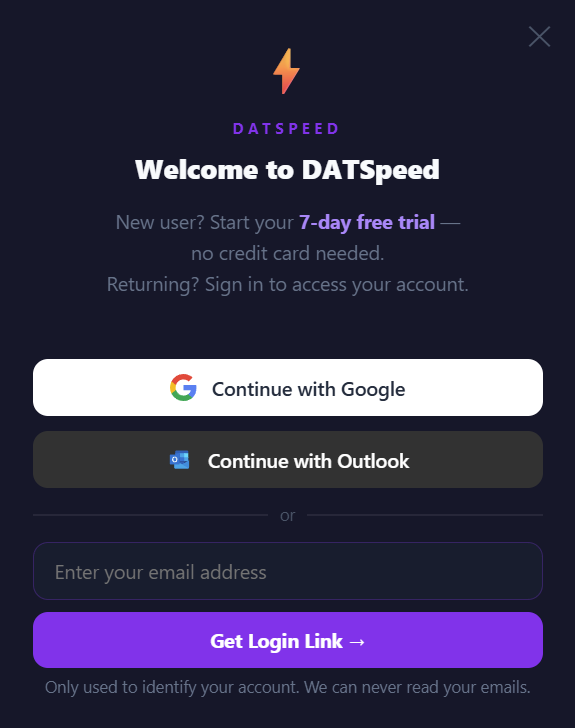
The first time you open Search Loads, the DATSpeed welcome screen appears. Pick whichever sign-in you like:
Continue with Google · Continue with Outlook · or enter your email for a magic login link — no password needed.
Your 7-day free trial starts immediately. No credit card required.
✉️ Connect Gmail or Outlook
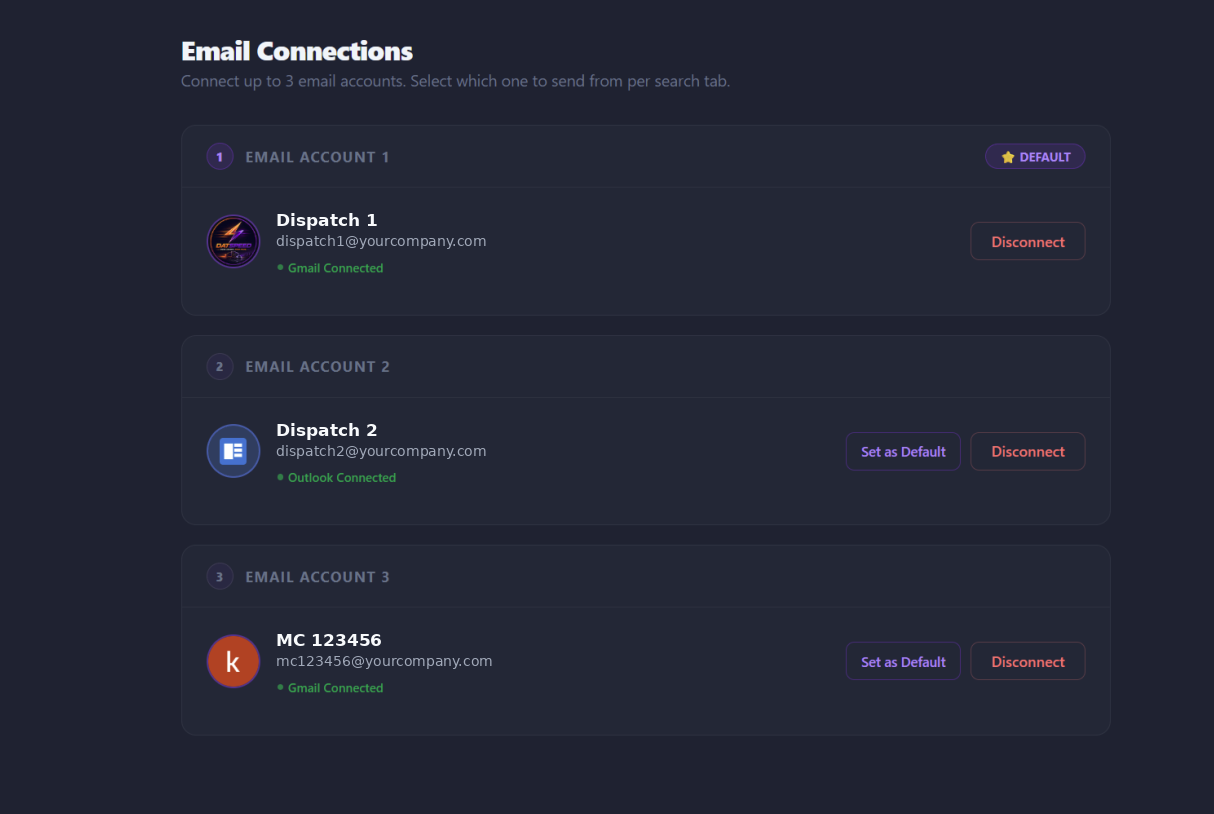
Open the DATSpeed popup (click the ⚡ icon) → Full Settings → Connections. Connect up to 3 email accounts — any mix of Gmail and Outlook — then pick which one sends per search tab. Built for dispatchers running multiple MC numbers or companies.
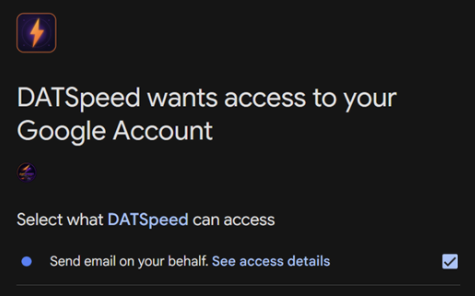
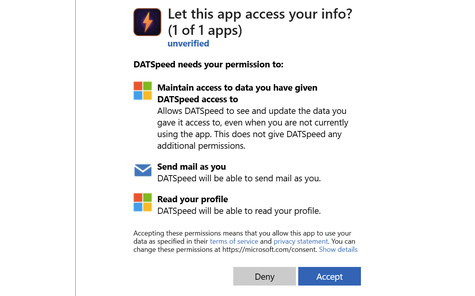
On the Google permission screen, check the box that lets DATSpeed send email on your behalf. If you skip it, sending won't work — no harm done, just sign in again and check it.
💳 Connect RTS & Apex (optional)
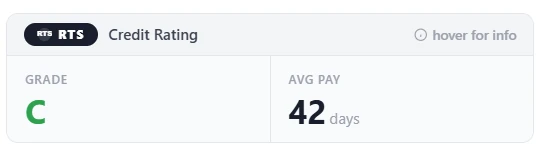
If you use RTS Pro or Apex Capital for credit checks, DATSpeed shows broker ratings right inside DAT One.
Log in to RTS Pro (or Apex AMP) in another tab, then open the DATSpeed popup and click Connect on the matching card. That's it — credit ratings now appear on every load.
⌨️ Fly Through Loads
Stop clicking around. Navigate the whole board from your keyboard:
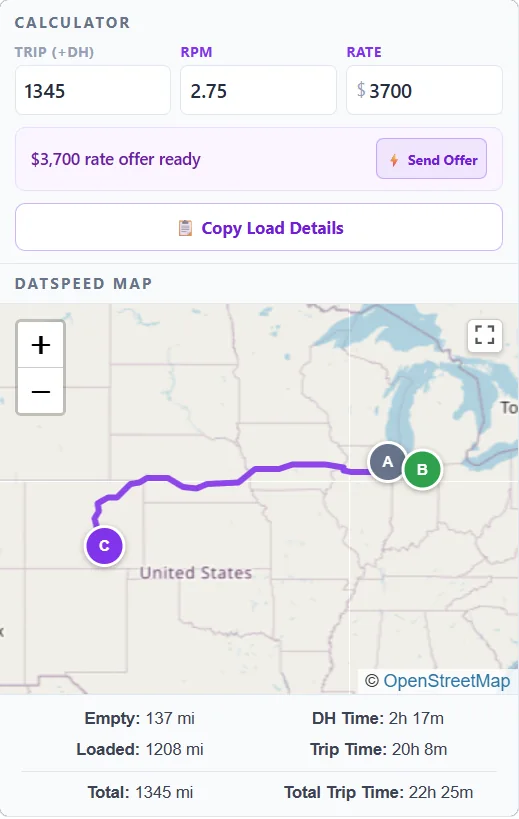
Every load also gets an embedded route map with real driving miles, deadhead, and trip time — plus a built-in rate calculator.
🚀 Send Your First Email
Find a load you like and hit the ✉ send button on the row — or just press M. DATSpeed fills in the origin, destination, and dates automatically from the load, using your custom template.
A green dot marks every load you've already emailed, so you never double-send.

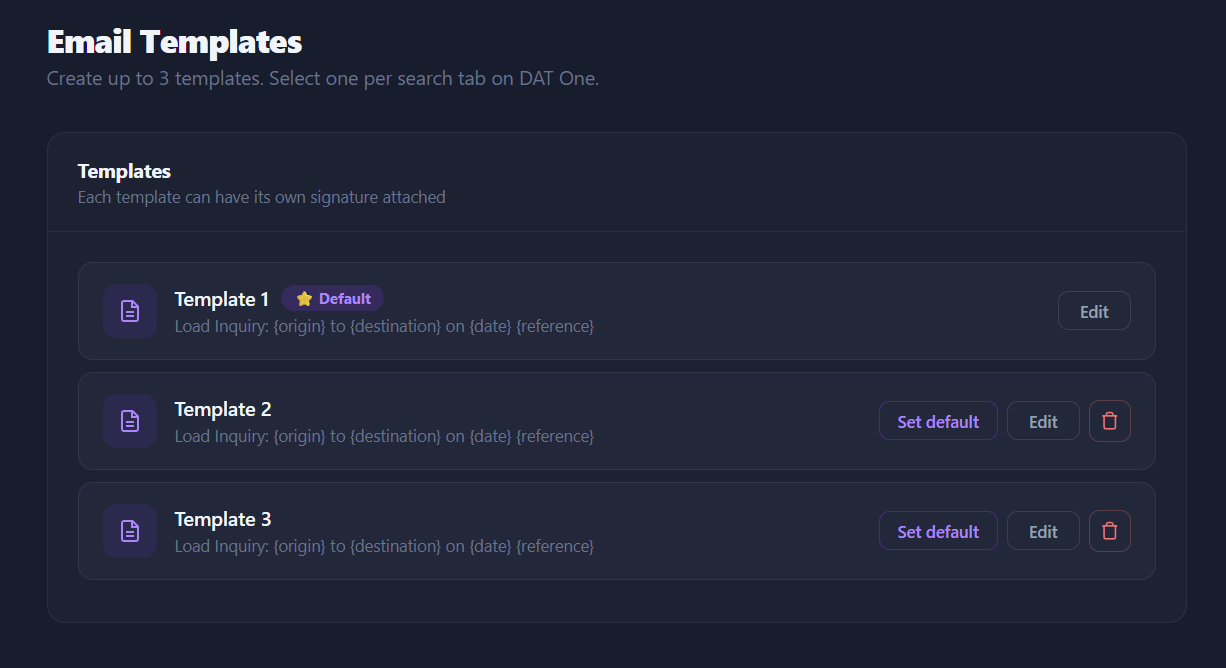
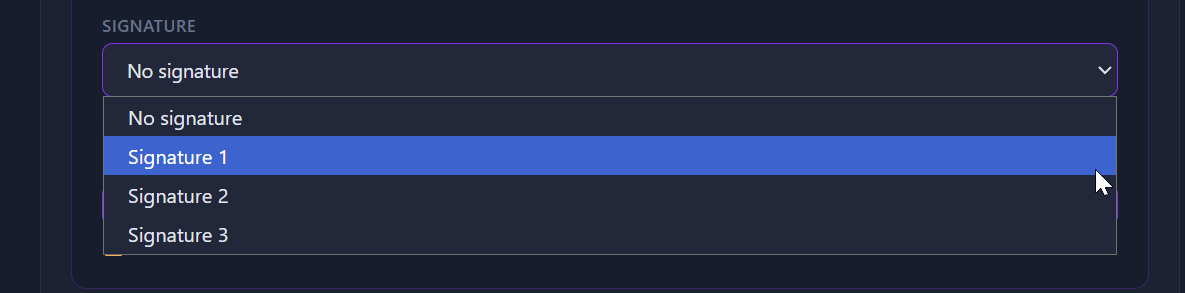
{origin}, {destination}, {date}, {miles} and {reference} — they fill in automatically for every load. Want a signature? Create it once in Full Settings → Signatures, then attach it to any template.
🛡️ It's all good — you've got this.
DATSpeed never reads your inbox. It only sends the emails you click to send, from your own Gmail or Outlook. Take it one step at a time — and if anything looks off, use Live Chat or email support@datspeed.app and we'll walk you through it.